
Ever come across a helpful video on LinkedIn that you’d like to save for later? It can be a business lesson, career tip, tutorial, or interesting talk. Storing a video can help you to replay it later when you need to. But LinkedIn doesn’t have a direct download link for all the videos posted. You’ll understand various methods of saving videos and what tools you can use to try, as well as some things to consider before downloading someone else’s material.
Can You Download Videos from LinkedIn?
It is crucial to know the rights of the creator before downloading a video. Some videos are available for everyone to see, but this doesn’t necessarily mean you can use them in any way you like. It’s not the same thing as putting a video on another site or using it in business.
Always have respect for copyright rules and terms of LinkedIn. When creating videos for sharing, editing, or publishing another party’s content, seek permission first. Also, don’t attempt to watch private videos without permission.
Methods to Download Videos from LinkedIn Posts
There are several ways to save LinkedIn videos. It will depend on the post, device and tools that you have.
1. Using Online LinkedIn Video Downloaders
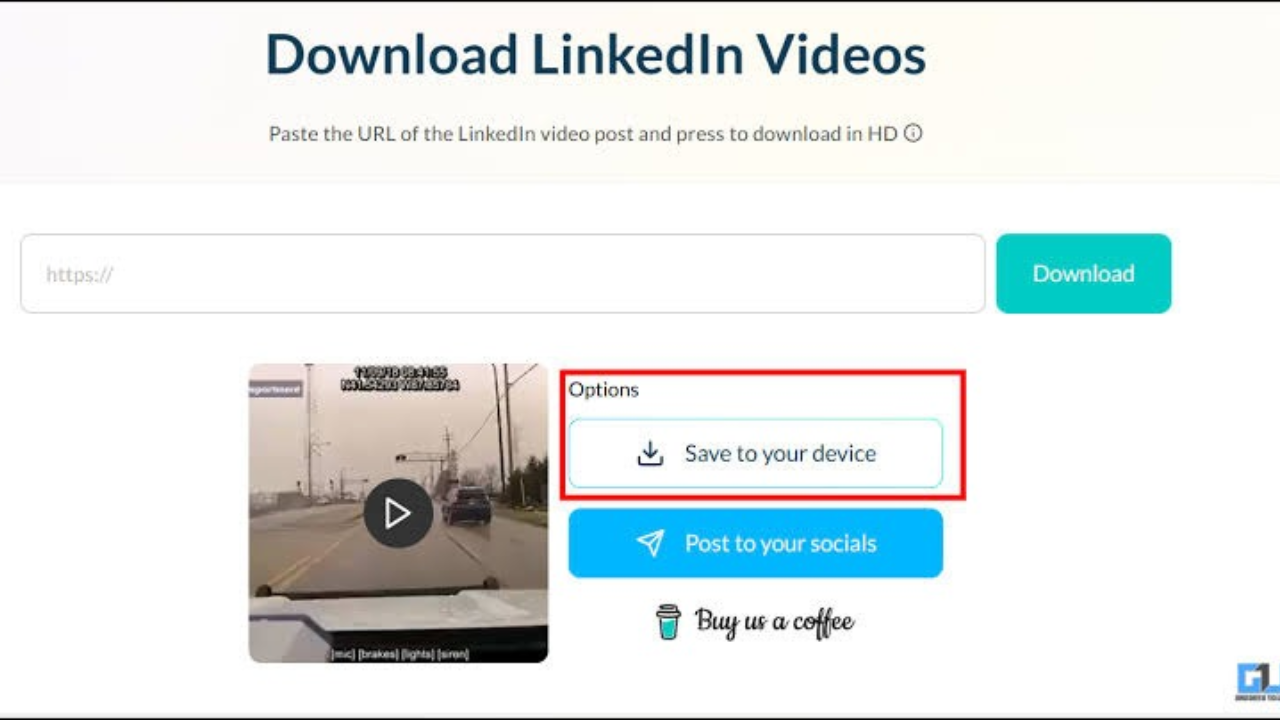
If you’re a beginner, an online video downloader is probably the easiest choice. These sites can also let you save videos, by providing a link to a public LinkedIn post.
Follow these steps:
- Go to LinkedIn and look for the post that has the video.
- Click on the three dots menu for the post.
- Click on “Copy link to post.”
- Access a reliable LinkedIn video downloader site in your browser.
- Copy the link and paste it into the download box.
- Choose a video format or quality available.
- Select the DOWNLOAD and save the file on your device.
MP4 is a handy format because it is supported by most phones and computers. But not all downloaders support all posts and quality may vary.
Using Browser Developer Tools
Try using the Developer Tools in your browser if an online downloader isn’t available. This technique is a bit more advanced and not applicable to all LinkedIn videos.
Open post on the desktop browser and play the video. Right click on the page and select “Inspect” (or the equivalent keyboard shortcut for a given browser). Play the video and view the media requests in the Network tab.Open the Network tab and view the media requests as the video plays.
If a video file is available that can be accessed, you may be able to open it in a new tab and save it. A direct MP4 file may not appear as some videos are streamed or require protection. Avoid circumvention of access control.
Using Screen Recording
If it is not possible to download directly, another alternative is to screen record. It records the video that is played on the screen.
Open up a screen capturing application on the computer or a phone. Click on the area to record, press Record and play the video from LinkedIn. Once the video has been finished, end the recording and save the video file.
One desktop recording solution is OBS Studio. Screen recording options are also available on compatible devices, such as built-in features. To get a better outcome: Close all unused windows, turn on the system audio if necessary, and use an appropriate screen resolution. Keep in mind that sometimes screen recording will not be as high quality as the original recording.
Best Tools and Websites for Downloading LinkedIn Videos
The best tool is the one that’s more relevant for downloading a video directly or recording a video from your screen.
Convenience of Online downloaders: They are software-less and can be operated using a browser. Their features and reliability may vary, though. Look for tools that can be used on your device and that allow you to post to public LinkedIn videos with suitable quality.
OBS Studio is a desktop application that can be used to record screens and capture audio. Another alternative is Camtasia which has recording and editing capabilities. Use the device’s inbuilt recorder is another option.
Never input a LinkedIn password from an unfamiliar downloader; for safety. Don’t open suspicious pop-ups, download anything that is not recognized or has requested unneeded permissions.
Common Problems and Their Solutions
In some cases, following the right procedures does not actually result in a LinkedIn video downloading. This issue could be due to a link being misconfigured or restricted access, or because the downloader is no longer compatible with LinkedIn.
Make sure to copy the entire post link and that the video is still accessible. If one tool doesn’t work, use another reliable tool. In the case of a private or restricted video, please seek permission from the video’s creator, not circumvent the restrictions.
If the saved video is blurry, check to see if there is a higher quality one available. If the resolution of your screen or your screen recording settings are set too low, a screen recording might be less clear.
Final Word
Knowing how to download video from LinkedIn can be helpful for keeping important content for future reference. Easy to try online downloaders, Developer Tools can be tried in some instances and screen recording is an alternative. Remembering to respect the creator rights before sharing or reusing a video, select a safe method appropriate for your device.
FAQs
1.Is it possible to download any video from LinkedIn?
No. There are some videos that are private, restricted or cannot be downloaded. Access and permissions of the video owner are relevant.
2.What does LinkedIn video downloader mean?
It’s an online tool that can help you save a video from a LinkedIn post that you are able to access thanks to its link.
3.Can videos be downloaded from LinkedIn?
This depends on the content and its use. Respect copyright and LinkedIn usage and permissions.
4.How to save Linkedin videos?
MP4 is widely-used and compatible with many devices, though the specific format varies based on the tool and original video.
5.What happens if a LinkedIn video doesn’t download?
Look at the link in the post, ensure the video is available on it or use another safe way to access it.
Read More: Cheapest Cars to Lease: Top Picks & Deals